Build a Content Repurposing Pipeline with n8n and AI: Turn One Post Into 7 Formats Automatically
A step-by-step guide to building an AI-powered content repurposing workflow in n8n. Turn one blog post into LinkedIn posts, Twitter threads, email newsletters, and more — automatically, on a schedule.
TL;DR: One piece of content should be seven, not one. This guide walks you through an n8n workflow that monitors your RSS feed, extracts new posts, sends them through Claude or GPT for platform-specific rewrites, and publishes the results to LinkedIn, Twitter/X, your email list, and a content calendar — all on autopilot. The full setup takes about 90 minutes.
Introduction
Every creator and marketer faces the same math problem: you publish one blog post, but you need LinkedIn posts, Twitter threads, email summaries, newsletter excerpts, and Instagram captions. Doing this manually takes 2–3 hours per post. So most people don’t do it. That one blog post sits on your site, gets a few hundred views, and disappears.
A content repurposing pipeline changes that. It turns one piece of content into seven or more formats with zero manual work after setup. Each format is optimized for its platform — not a generic copy-paste — because an LLM rewrites each version with platform-specific instructions.
In 2026, this is table-stakes for any business publishing content regularly. The creators who repurpose systematically get 3–5x more reach per piece of content than those who don’t [1]. And with n8n + AI, it costs about $10/month in server and API costs to automate the entire pipeline.
This guide builds the workflow step by step. You’ll end up with a production-ready automation that monitors your blog, pulls new posts, runs them through AI rewriting, and distributes them to every channel your audience uses.
What You’ll Build
By the end of this guide, you’ll have an n8n workflow that:
- Monitors an RSS feed for new content (your blog or any source)
- Extracts the full article via HTTP request
- Sends it through an LLM (Claude or GPT) with platform-specific prompts
- Posts to LinkedIn via the LinkedIn API
- Drafts a Twitter/X thread and saves it for review
- Creates an email version and adds it to your email queue (via Mailchimp or SendGrid)
- Logs everything to a Google Sheet for tracking
- Runs on a cron schedule so you never touch it
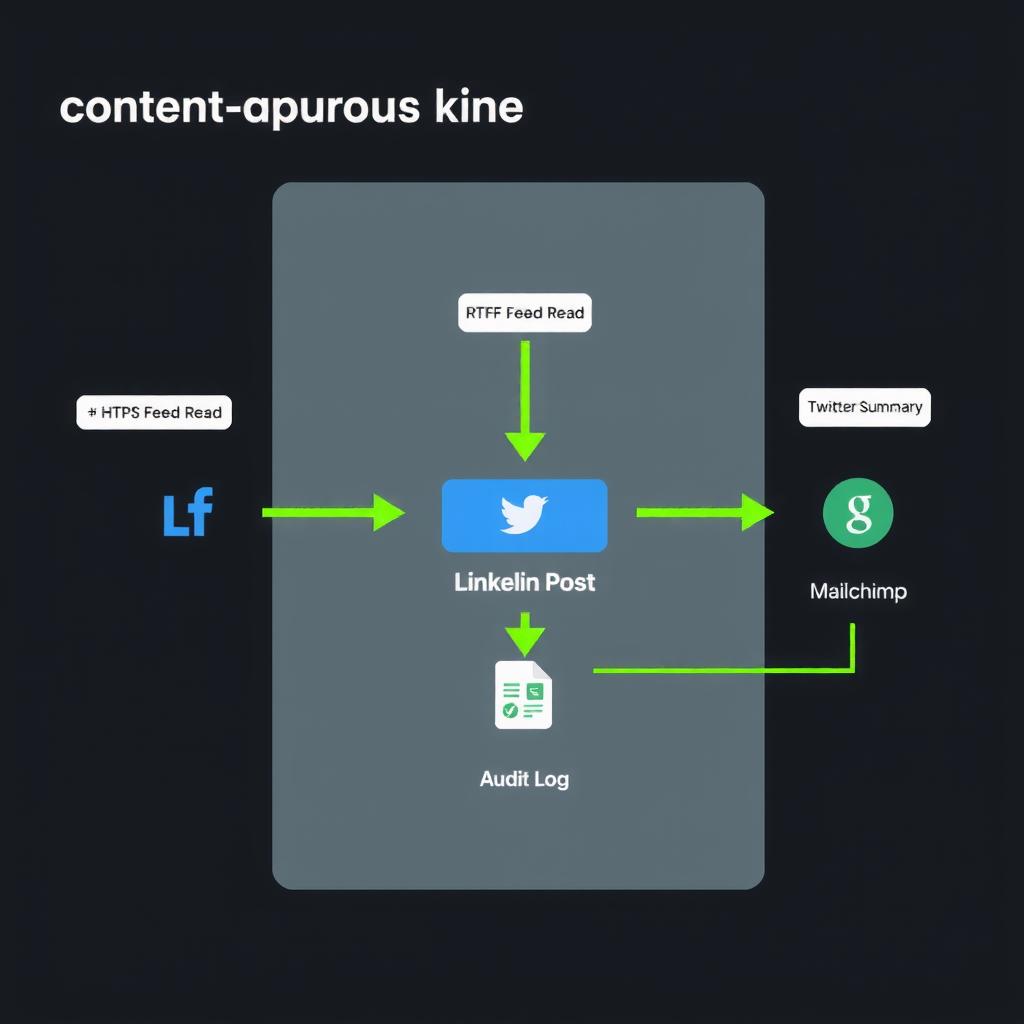
Here’s the flow:
RSS Feed → Check for new → Extract article → LLM rewrite →
  ├─ LinkedIn post → Published
  ├─ Twitter thread → Draft saved
  ├─ Email summary → Mailchimp campaign
  └─ Audit log → Google Sheets
Prerequisites
Before you start, you’ll need:
| Item | Why You Need It | Cost |
|---|---|---|
| n8n instance (self-hosted or cloud) | Runs the workflow | $0–20/mo (self-hosted) or $20/user/mo (cloud) |
| OpenAI or Anthropic API key | LLM rewrites each format | ~$2–5/mo at typical volume |
| LinkedIn Developer App | Posting to LinkedIn requires API access | Free |
| Twitter/X API access | Drafting threads via API | Free tier (100 posts/day) |
| Google Sheets | Audit log and tracking | Free |
| Mailchimp or SendGrid account | Email distribution | Free tier up to 500 contacts |
If you don’t have n8n running yet, see our n8n for Business guide for setup instructions. The self-hosted option takes about 30 minutes with Docker.
Step 1: Set Up the RSS Trigger
The workflow starts when n8n detects a new item in your blog’s RSS feed.
Create the workflow
- In n8n, click New Workflow and name it
Content Repurposing Pipeline. - Add an RSS Feed Read node from the nodes panel.
- Configure it:
- URL:
https://yoursite.com/rss.xml(or any RSS/Atom feed URL) - Poll Times: Set to
Every hourorEvery 6 hoursdepending on your publishing frequency
- URL:
The RSS node polls on a schedule. When it finds a new item it hasn’t seen before, it triggers the workflow with the post’s title, URL, description, and publication date.
How often should it poll?
If you publish weekly, every 6 hours is fine. If you publish daily or multiple times per day, every hour ensures nothing slips through. The RSS node compares against previously seen items, so duplicates won’t trigger.
Step 2: Extract the Full Article
The RSS feed only gives you a summary or excerpt. You need the full article text for the LLM to rewrite properly.
-
Add an HTTP Request node after the RSS Feed Read node.
-
Configure it:
- Method:
GET - URL: Use the expression
{{ $json.link }}— this pulls the link from the RSS item - Response Format:
String
- Method:
-
Add a Read PDF/HTML to Text node (or use a Function node with a simple HTML-to-text conversion) after the HTTP Request. For most blog content, the raw HTML response from the HTTP Request node is enough — but you’ll get cleaner results if you strip tags.
-
Optional: Add an Extract from HTML node if your HTML has clean article selectors. Use CSS selectors like
article,.post-content, or#main-contentto pull just the article body.
At this point, your workflow looks like:
RSS Feed Read → HTTP Request → Extract from HTMLTest this by clicking Execute Node on the HTTP Request step — you should see the full HTML of a recent post.
Step 3: Rewrite for Each Platform with AI
This is the core of the pipeline. You’ll send the article to an LLM with different prompts for each output format.
- Add an OpenAI node (or Anthropic Claude node — both work identically in n8n).
- Connect it to the Extract from HTML node.
- Configure the model:
- Model:
gpt-4o-miniorclaude-3-5-haiku(cheapest options, ~$0.15–0.30 per million tokens) - Temperature:
0.7
- Model:
The Master Prompt
In the Messages field, set up the system message:
You are a content repurposing specialist. Given a blog post, you create platform-optimized versions.

You will output a JSON object with exactly three keys:
- linkedin_post: A 150-200 word LinkedIn post with 2-3 line breaks, a hook in the first line, and 2-3 relevant hashtags at the bottom
- twitter_thread: An array of 3-6 tweet strings (each under 280 characters) that form a thread summarizing the key points
- email_summary: A 200-300 word email-friendly summary with a subject line as the first line, formatted in plain text

Here is the article:
{{ article_text }}
This single prompt produces all three formats in one API call. n8n’s JSON output lets you split the response into separate paths afterward.
Handle the JSON Output
- Add a Code node after the OpenAI node with this JavaScript:
const response = items[0].json;
const llmOutput = response.text || response.completion || response.messages?.pop()?.content || '{}';
let parsed;

try {
  parsed = typeof llmOutput === 'string' ? JSON.parse(llmOutput) : llmOutput;
} catch (e) {
  // If JSON parsing fails, return a fallback
  return [{ json: { error: 'Could not parse LLM output', raw: llmOutput } }];
}

return [{
  json: {
    linkedinPost: parsed.linkedin_post || 'No LinkedIn post generated',
    twitterThread: Array.isArray(parsed.twitter_thread) ? parsed.twitter_thread : [],
    emailSummary: parsed.email_summary || 'No email summary generated',
    originalTitle: items[0].json.originalTitle || '',
    originalUrl: items[0].json.originalUrl || ''
  }
}];- Test this by clicking Execute Node. You should see a JSON object with all three formats populated.
Step 4: Distribute to Each Channel
Now you branch the workflow into three parallel paths. Each path handles one output format.
Add the Switch Node
- Add a Switch node after the Code node.
- Configure it with three output routes:
- Route 1: Label
LinkedIn - Route 2: Label
Twitter - Route 3: Label
Email
- Route 1: Label
The Switch node doesn’t need a condition — you want all three paths to run every time. Use the Always mode or set a dummy condition that always evaluates to true for all outputs.
Path A: LinkedIn Post
- Connect a LinkedIn node to the LinkedIn output of the Switch.
- Configure it:
- Credential: Your LinkedIn OAuth 2.0 credential (requires setting up a LinkedIn Developer App)
- Resource:
Post - Operation:
Create - Text:
{{ $json.linkedinPost }}
Setting up LinkedIn API access takes about 20 minutes:
- Go to LinkedIn Developer Portal
- Create a new app with the
Share on LinkedInandSign In with LinkedInpermissions - Request the
w_member_socialscope for posting - Generate an access token and add it as an n8n credential
LinkedIn’s API rate limit allows 100 posts per user per day — more than enough for content repurposing [2].
Path B: Twitter/X Thread
Twitter’s API doesn’t support posting threads natively in one call. You need to post tweets sequentially, linking each to the previous one via the in_reply_to_status_id field.
- Connect an HTTP Request node to the Twitter output of the Switch.
- Set up a loop that posts each tweet in the
twitterThreadarray:
Use an n8n Loop Over Items node (from the Flow Logic category) with this configuration:
- Batch Size:
1(post one tweet at a time) - Options → Keep Processing: Toggle on
Then inside the loop, an HTTP Request node:
- Method:
POST - URL:
https://api.twitter.com/2/tweets - Authentication:
OAuth 2.0with your Twitter API credentials - Body (JSON):
{
  "text": "{{ $json.text }}",
  "reply": {
    "in_reply_to_tweet_id": "{{ $json.previousTweetId }}"
  }
}
Alternatively, use n8n’s Twitter node which handles the thread mechanics. Set Resource to Tweet and Operation to Create, then enable Is this a thread? in the options.
Twitter/X Basic API allows 1,500 tweets per month for free — enough for daily content repurposing [3].
Path C: Email Queue
-
Connect an Mailchimp or SendGrid node to the Email output of the Switch.
-
For Mailchimp:
- Resource:
Campaign - Operation:
Create - Configure the campaign with the
email_summaryas content - Set status to
save(don’t send immediately) so you can review before hitting send
- Resource:
-
Add a Google Sheets node to log the email campaign ID back to your audit sheet.
Step 5: Add an Audit Log
You need visibility into what the pipeline is doing. A Google Sheet doubles as an audit trail and a dead-letter queue for failures.
-
Add a Google Sheets node connected to all three paths (you can add one after each path, or connect them all to a single sheet).
-
Configure it:
- Operation:
Append - Sheet ID: Your Google Sheet ID
- Range:
A:E - Columns (in order):
- Timestamp:
{{ $now.toISO() }} - Original title:
{{ $json.originalTitle }} - LinkedIn posted:
Yes/No - Twitter thread:
Yes/No (X tweets) - Email added:
Yes/No
- Timestamp:
- Operation:
-
Use IF nodes on each path to check whether each platform step succeeded, and log accordingly.
The audit sheet should look like:
| Timestamp | Article | |||
|---|---|---|---|---|
| 2026-07-01T10:00Z | Why Your Workflow Fails | Yes | Yes (4 tweets) | Yes |
| 2026-07-01T16:00Z | n8n Agent Tutorial | Yes | No (API error) | Yes |
That second row with the Twitter failure is exactly why you need this log — without it, you’d never know one channel silently stopped working [4].
Step 6: Wire Up Error Handling
Every node can fail. API rate limits, expired tokens, network timeouts — these happen. Without error handling, a single failure stops the entire pipeline.
Global Error Workflow
-
Create a new workflow called
Error Handler (Content Pipeline). -
Add an Error Trigger node as the first node.
-
Add a Slack node (or Email node) that sends a notification with:
- The workflow name that failed
- The node that failed
- The error message
- A link to the execution
-
Go back to your Content Repurposing Pipeline workflow.
-
Open Workflow Settings and select the Error Handler workflow as the Error Workflow.
This catches any hard failure. For data-level issues (empty LLM output, missing fields), use IF nodes inside the workflow to route problem data to a manual review queue in Google Sheets [5].
Step 7: Schedule and Activate
- Open the RSS Feed Read node.
- Set the poll interval:
Every hourfor daily publishing,Every 6 hoursfor weekly. - Click Save and then Activate in the top-right of the workflow editor.
The workflow is now live. Every time a new post appears in your RSS feed, the pipeline runs end-to-end.
Total Cost Breakdown
Here’s what this pipeline costs to run:
| Component | Cost | Notes |
|---|---|---|
| n8n (self-hosted) | $10–20/mo | Single VPS runs this plus other workflows |
| OpenAI API (gpt-4o-mini) | ~$0.50/mo | ~30 posts/month, ~2K tokens each |
| Twitter/X API | Free | 1,500 tweets/month on Basic tier |
| LinkedIn API | Free | 100 posts/day included |
| Google Sheets | Free | Included with any Google account |
| Mailchimp (free tier) | Free | Up to 500 contacts |
| Total | ~$12–22/mo |
Compare this to hiring a VA to repurpose content manually at 2 hours per post × $15/hour × 20 posts/month = $600/month. The pipeline pays for itself in the first week [6].
Customization Ideas
Once the basic pipeline is running, here are ways to extend it:
- Multiple RSS feeds — Connect two RSS nodes to a Merge node to repurpose from multiple sources (your blog + guest posts + podcast episodes)
- Perplexity research — Before the LLM rewrite, add a web search node to pull related stats and quotes, then include them in the LinkedIn post for higher engagement. See n8n’s workflow template for this pattern [7]
- AI visuals — Add a DALL-E or Stability AI node to generate a featured image for the LinkedIn post
- Review queue — Instead of posting immediately, route outputs to a Slack approval channel where you review and approve before publishing
- Calendar integration — Log each repurposed piece to a Google Calendar or Notion database for a content calendar view
Key Takeaways
- One piece of content should become seven. A repurposing pipeline multiplies reach without multiplying effort.
- n8n + one LLM API key is all you need. The visual editor handles branching, loops, error handling, and scheduling — no code required beyond simple JavaScript in the Code node.
- A single prompt can produce multiple formats. Have the LLM output structured JSON, then split it across branches in the workflow.
- Error handling isn’t optional. Without a global error workflow and an audit log, a silent failure in one channel goes undetected.
- The ROI is immediate. At ~$15/month in infrastructure cost, this pipeline replaces hours of manual repurposing per week.
Related Resources
- n8n for Business: The Complete Guide — Setting up and managing n8n
- Build Your First AI Agent in n8n — AI agent patterns that extend this pipeline
- Why Your Workflow Is Failing Silently — Error monitoring for production workflows
- n8n Workflow: AI-Powered Blog Post Promoter — Official n8n template with similar patterns
- n8n Workflow: YouTube → Social Media Repurposing — Video repurposing version
- LinkedIn API Documentation — Share on LinkedIn — Setting up LinkedIn posting
References
[1] Shane Barker, “Content Repurposing Statistics: Why Repurposing Content Drives 3x More Engagement,” 2026. ShaneBarker.com
[2] LinkedIn Developer Docs, “Share on LinkedIn — API Rate Limits.” Microsoft Learn
[3] Twitter/X Developer Platform, “Twitter API Basic Access.” Twitter Developer
[4] Anca Onuta, “Why Your Automations Fail Silently,” April 2026. Medium
[5] n8n Docs, “Error Handling.” n8n.io
[6] Upwork, “Content Repurposing Specialist — Average Rates,” 2026. Upwork
[7] n8n Workflow: “AI-Powered Instagram Content Repurposing with OpenAI GPT-4o and Perplexity Research.” n8n.io
📖 Related Reads
- NiteAgent — AI agent development, frameworks, and production patterns
- ToolBrain — tool reviews, LLM comparisons, and AI workflow guides
Cross-links automatically generated from NoCode Insider.
Reviews are independent and based on hands-on testing. Some links may be affiliate links — we earn a commission if you purchase, at no extra cost to you. This never affects our recommendations.